Connections and environments
A connection is one Azure App Configuration store: one application's set of flags, and the connection string Flagsweep uses to reach them. An environment is a named view onto that store, mapped to one Azure App Configuration label. Environments are what a flag's rollout is measured across, and what you protect.
How environments map to Azure labels
Azure App Configuration has no concept of environments. It has labels: a free-text tag on each key-value. The common convention is one label per environment (dev, staging, prod), and Flagsweep builds its environments on that convention.
- An environment with label
prodshows the flags whose label isprod, and writes go to that label. - An environment with No label shows flags in the store's default, unlabelled space.
- Flagsweep never invents labels. Creating a flag in an environment writes the key with that environment's label.
A connection covers exactly one store. If you use a separate App Configuration store per environment instead of labels, each store becomes its own connection, and those environments cannot appear in one flag's rollout or in one connection's drift view.
Environment definitions live only in Flagsweep. Adding, renaming, or deleting an environment changes nothing in Azure.
Create a connection
Only admins can create connections, because creating one means handing Flagsweep the store's credentials.
- Click the + next to Connections in the sidebar, or go to
/new-connection. - Paste the store's read-write Connection string and continue. Flagsweep connects to the store and reads its labels. See Connect Azure App Configuration for where to find the string and what the errors mean.
- Enter a Connection name (up to 100 characters). It is prefilled with the Azure store name. Click Next.
- Define environments:
- Discovered labels lists every label found in the store. Tick the ones you want. Each becomes an environment named after the label.
- Custom environments lets you type an Environment name and an optional Label, then click Add. Leave the label empty for the unlabelled space. Use this for labels that do not exist yet, or when you want a friendlier name than the label.
- Environment names must be unique within the connection.
- Click Create connection.
Each store can be connected only once. If the store is already connected, Flagsweep stops at step 2 with "This store is already connected as '...'."
The order you add environments in becomes their sort order. You can change it later.
Connection settings
Open Settings under the connection in the sidebar (admins only). The page has two sections: Store and Environments.
Store
Shows the endpoint of the store this connection points at.
- Test connection checks that Flagsweep can still reach the store with the saved credentials.
- Replace connection string swaps in new credentials, for example after you regenerate the store's access keys. See Rotate access keys.
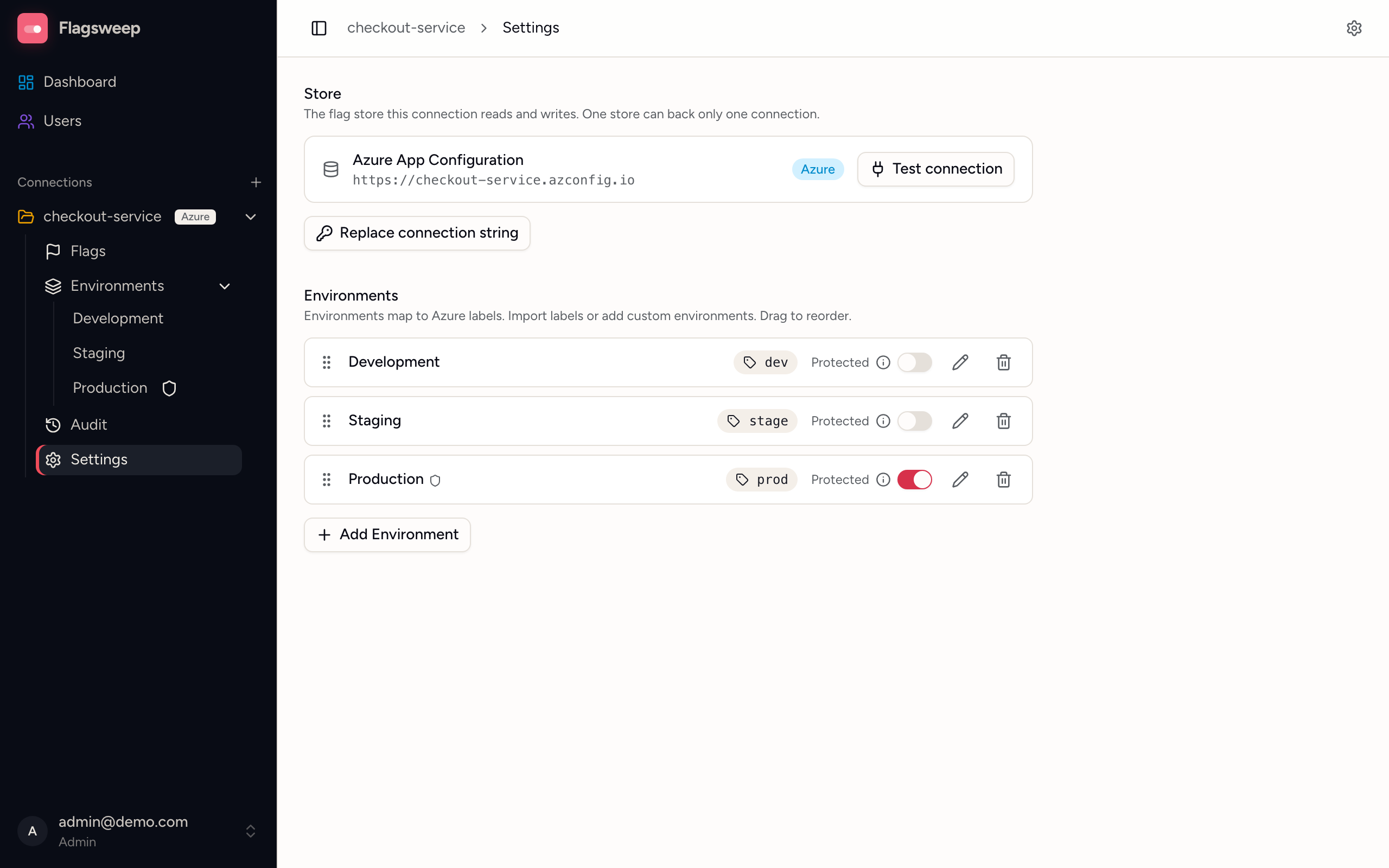
Add an environment
- Click Add Environment.
- Choose Import from labels to pick a label that is not mapped yet, or Add custom to enter a name and an optional label.
- Click Add Environment.
Rename an environment or change its label
Click the pencil on the row, edit Name or Label, and press Enter or the check mark. Changing the label repoints the environment at a different set of flags in the store. The flags themselves do not move.
Reorder environments
Drag the grip handle at the left of a row. The order is saved immediately. It controls:
- the order of environments in the sidebar,
- the order of the chips in a flag's rollout strip,
- which environment counts as the baseline for drift. The last environment in the order is the baseline, so an order of Dev, Staging, Prod compares Dev and Staging against Prod. This applies to the dashboard's connection cards and to every flag's Drift badge.
Protect an environment
Turn on the Protected switch on a row. Only admins can then create, toggle, edit, or delete flags in that environment. Members see the flags but cannot change them. See Locks and protected environments.
Protection is enforced by label, so an environment with No label cannot be protected effectively. Give production a label.
Delete an environment
Click the trash icon and confirm with Delete environment. Only the Flagsweep mapping is removed. Every flag under that label stays in Azure exactly as it was.
The audit entries recorded for that environment are deleted with it. If you only want to hide an environment temporarily, leave it in place; there is no way to recover its history afterwards.
Rename or delete a connection
There is no UI for this yet. Admins can rename with PUT /api/connections/{id} or delete with DELETE /api/connections/{id}. Deleting a connection removes its environments, ownership records, audit history, and saved connection string from Flagsweep. It does not touch Azure. Once the connection is gone, the store can be connected to a new connection.
Find an environment quickly
Press Cmd+K (or Ctrl+K) anywhere. Type part of a connection or environment name and pick a result to jump to its flag table.